You can see your Pen Drive or Flash Drive’s default file system is
Fat32. If your pen drive is 8 GB or More, then In the Fat32 you can send
a single file upto 4 GB. Because Fat32 has 4 GB file limit. You can
not copy a large file to you pen drive. You can send multiple file but
you can not send a single file upto 4 GB. So if you want to send a
single file more than 4 GB then you have to change your file system to
NTFS.
You have to change your file system from DOS. The process is very
simple. And one more thing, This process will change file system without
harming or deleting your files
inside your flash drive. That’s mean your files will not be deleted.
Just file system will be changed. Just follow the steps below:
1. Insert your pen drive or flash drive in to your computer’s USB port.
2. Open DOS or Command Prompt. (Start->All Programs->Accessories->Command Prompt)
3. Command Prompt will be opened. Just Type “convert FLASHDRIVEPATH:/fs:ntfs” and press Enter. The final command: convert l: /fs:ntfs
You can see in picture below.
wait for some time and file system will be changed. Note: Just format the flash drive to get Fat32 file system back.
You can see your Pen Drive or Flash Drive’s default file system is
Fat32. If your pen drive is 8 GB or More, then In the Fat32 you can send
a single file upto 4 GB. Because Fat32 has 4 GB file limit. You can
not copy a large file to you pen drive. You can send multiple file but
you can not send a single file upto 4 GB. So if you want to send a
single file more than 4 GB then you have to change your file system to
NTFS.
You have to change your file system from DOS. The process is very
simple. And one more thing, This process will change file system without
harming or deleting your files
inside your flash drive. That’s mean your files will not be deleted.
Just file system will be changed. Just follow the steps below:
1. Insert your pen drive or flash drive in to your computer’s USB port.
2. Open DOS or Command Prompt. (Start->All Programs->Accessories->Command Prompt)
3. Command Prompt will be opened. Just Type “convert FLASHDRIVEPATH:/fs:ntfs” and press Enter. The final command: convert l: /fs:ntfs
You can see in picture below.
wait for some time and file system will be changed. Note: Just format the flash drive to get Fat32 file system back.
There may come a time when you want to digitize your priceless old
pictures, or need to scan a receipts and documents for your company.
Today we look at how to scan a picture or document in Windows 7. Scanning Your Document In this example we’re using an HP PSC 1500 All-In-One printer
connected to a Windows 7 Home Premium 32-bit system. Different scanners
will vary, however the process is essentially the same.
The scanning process has changed a bit since the XP days. To scan a
document in Windows 7, place the document or picture in the scanner,
click on Start, and go to Devices and Printers.
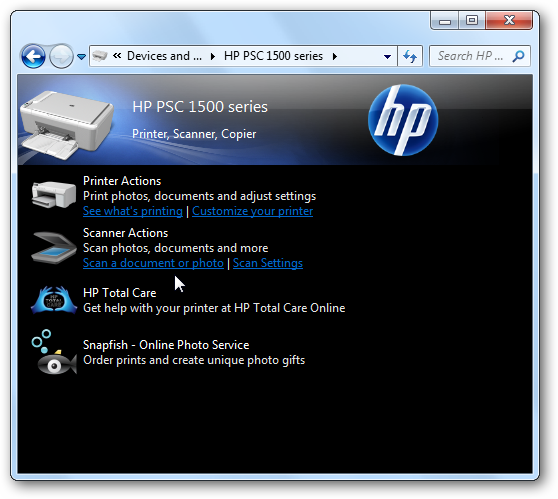
When the Devices and Printers window opens, find your scanning device
and double-click on it to get the manufacturers Printer Actions menu.
For our HP PSC 1500 we have a few different options like printing, device setup, and scanner actions. Here we’ll click on the Scan a document or photo hyperlink.
The New Scan window opens and from here you can adjust the quality of
the scanned image and choose the output file type. Then click the
Preview button to get an idea of what the image will look like.
If you’re not happy with the preview, then you can go back and make
any adjustments to the quality of the document or photo. Once everything
looks good, click on the Scan button.
The scanning process will start. The amount of time it takes will
depend on your scanner type, and the quality of the settings you choose.
The higher the quality…the more time it will take.
You will have the option to tag the picture if you want to…
Now you can view your scanned document or photo inside Windows Photo
Viewer. If you’re happy with the look of the document, you can send it
off in an email, put it on an network drive, FTP it… whatever you need
to do with it.
Another method is to place the document of photo you wish to scan in
the scanner, open up Devices and Printers, then right-click on the
scanning device and select Start Scan from the context menu.
This should bypass the manufacturer screen and go directly into the
New Scan window, where you can start the scan process. From the Context
Menu you can also choose Scan Properties.
This will allow you to test the scanner if you’re having problems with it and change some of its settings.
Or you can choose Scan Profiles which allows you to use pre-selected settings, create your own, or set one as the default.
Although scanning documents and photos isn’t a common occurrence as
it was a few years ago, Windows 7 still includes the feature. When you
need to scan a document or photo in Windows 7, this should get you
started.
Well, its weekend, time to party non-stop and with that binging non-stop. But, that doesn’t mean you are doomed to gain weight. What if you enjoy your weekend and at the same time lose 2 kilos, Surprised? Well do not be! Your weight issues are actually within your own control.
Here, I give you the simplest ways by which you can surely lose 2 kilos in a week. There are no fad diets, no rigorous exercises; it’s all about you or to be precise a ‘slim’ you in 7 days.
Breathing! Yes simply by breathing, you can lose two kilos in a week. Amazing it is, but true! What you need is mere patience and 10 minutes. ‘Kapalabhathi Pranayam’ is a breathing exercise to shed those extra kilos. With just 10 minutes of daily practice, it harmonizes and balances your body bringing it to a healthy state.
GoodBye Foods- Welcome Whole Foods For these 7 days stock your house with fruits, vegetables, healthy meats, grains, cereals. Explore the world of healthy, tasty snacks and appetizers ready to satisfy your cravings and your body!
A breakfast tip-Eat a piece of fruit or low fat yogurt in the morning before the breakfast. It makes you feel full and fights off hunger pangs
No Sodium! Avoid or minimize salt, it might sound difficult but it is certainly a small sacrifice for a slim body. Just flavor your food with other herbs and spices instead. Try a low sodium salsa spread on bread instead of sour cream and butter; this will not only taste good but feel good on your body.
Have a Sexy Saturday! Wondering what it can do in a weight loss plan? Well, if you are married then make this weekend a sexy weekend. For women ‘being on top’ is not only a ‘Rocking’ but also a great fat buster position.
A Sexy fat, Oops! Fact-A simple make out session burns up to 238 calories per half-hour. Now that is some safe fatbuster, isn’t it?
Take the ‘Bitter but Better’ RouteIt is time to cut the sugar. Replace the processed foods full of sugar and if you are fond of spices then chili sauces offer a lot of flavor without calories. Spicy food increases body's metabolic rate which makes you digest your food faster.
You must do-Planning a Sunday shopping? Stash some low-calorie snacks in your purse. No burger breaks!
Eat, Eat and Eat! Yes! It is a myth skipping meals makes you slim. The fact is when you do not eat; it becomes difficult for your body to find food. Thus, in order to protect you from starving:
Your body slows down your metabolism so that you burn fat at a slow pace.
The next meal (if you skip breakfast then your lunch) will all be stored as fat. This way you are indirectly gaining weight instead of losing.
The right way is to eat regularly throughout these 7 days and split your meals.
Tasty Drinks: just for you The healthiest drink in this 7 day plan is ‘Water’. Drink plenty of water each day along with natural juices. No artificial juices and soft drinks. If you are fond of milk then take low-fat or skim milk. All these liquids will create a feeling of satiety when consumed.
To keep you motivated, put some quotes like ‘I am going to look my best in 7 days’ on your mirror, phone and refrigerator. This way you will be on track and in shape within no time..!!!
Please Donate Something to Continue My Free Service
Desclaimer
Neither this site nor the author is endorsing the unethical use of hacking, cracking or any such activities. This site is only for educational purposes.All downloaded are from third party side. This site will hold no responsibility for your actions. It serves as a source of information only.....If you Found anything illegal, Please mail to me rafomac@rafomac.com.............by rafomac